FAQ
In the "FAQ" section you will find answers to many questions about CELLARNO.
Registration
You can register under the following link. In the form, please select the option "New customer". After you have filled in at least the mandatory fields, click on the green button "Register". With this you have registered as a user.
Prerequisite for registration: You run a registered business and have a VAT ID number.
Shipment and delivery
| Shipping method designation | Delivery period | Shipping costs |
|---|---|---|
| UPS | Delivery in 1 to 2 working days | 9,15 € |
| UPS-Express Saver National | Delivery by the end of the next working day | 9,15 € |
| UPS 12:00 Domestic | Delivery by 12:00 noon the next day | 9,90 € |
You select the desired shipping method in the second step of the ordering process.
The amount of shipping charges depends on your selected shipping method and delivery terms.
You can easily view the status and delivery date of your order under "My Account > Orders".
Please note that the individual items in your order may have different delivery dates and therefore different statuses. You can recognize this by the link "see details" in the column "delivery date". By clicking on the link "see details" you can see the delivery date and the status of the respective ordered item.

Payment
3D data, prices and availability
- Green: available (more than XXX pieces) X = number of quantity available
- Yellow: available (less than xx pieces) X = number of quantity available
- Gray: Soon available again (order now or contact us), (this message appears when the stock = 0, the item is available for order but with extended delivery time)
Product search
User management
In the user administration you can add further CELLARNO users to your customer account.
This way you, your colleagues and employees can share the CELLARNO customer account.
You can restrict your users regarding their order permissions and role.
Only administrators can use the user management. However, administrators can assign admin rights to additional users.

Use the "Permission" selection box at the bottom left to explicitly assign the "Administrator" role to a user. If you do not make a selection, the user has the role "User".
If you create a user in the role "User", you can set a maximum amount for an order for this user via the field "Basket release lower limit". If the net value of a shopping cart is below this limit, the user is allowed to place the order without release. CELLARNO documents every order. This reduces the administration effort and speeds up your purchasing process.
In the field "User name" you can optionally enter a short description, which allows you to identify the respective person more easily. For example, you can name a specific machine that the person primarily operates.
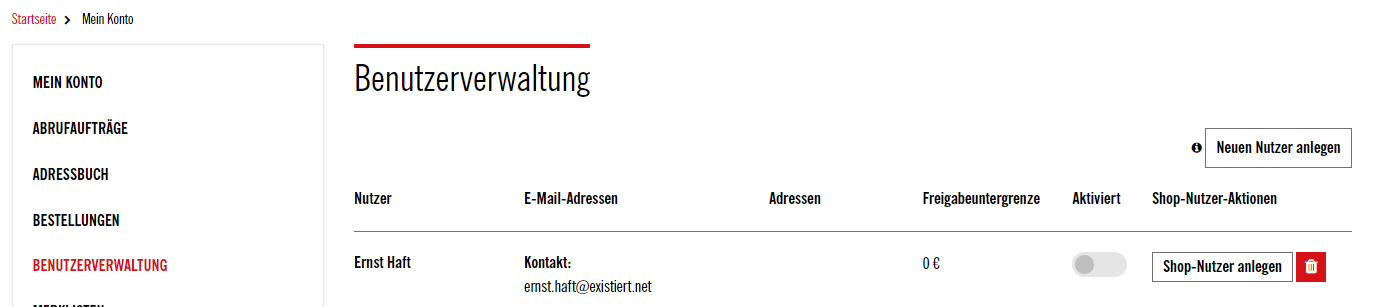
You create a new user under "My account > User management". In the user management you have to click on the button "Create new user". As soon as you have created a new user, he will receive an automated e-mail about the account activation. The user then only has to define his individual password. Via a button he will be forwarded directly to the corresponding input field. He can then become active in the store within the scope of his role.
To create a user you have to be logged in as "Administrator" in CELLARNO.
There is a so-called shopping cart approval process in CELLARNO. This process is active for users who do not have an admin role.
A user who does not have an admin role is allowed to add products to the shopping cart. Before placing an order, he has to get an approval from a specific administrator. The whole approval process runs through your CELLARNO account that means when a user requests an approval for the shopping cart, the admin will be informed by email that he has to approve a shopping cart. Once the admin has approved the cart, the user will receive an email notification that their cart has been approved and they can now order it.
The admin can also reject the shopping cart release. In this case, the user will also receive an e-mail notification.

You can set a maximum amount for an order for users via the " Lower limit for shopping card approval (€)" field.
If the net value of a shopping cart is below this limit, the user is allowed to place the order without approval. If the "Shopping cart release lower limit" field contains the amount 0.00 euros, the user requires a release for all orders.
Shopping cart approval process
- You have an overview of your purchasing team at all times.
- You have full transparency at all times.
- CELLARNO takes care of the communication. You handle approvals and queries quickly and directly. Thus you reduce the administration effort and accelerate your purchasing process.
- Each user receives a clear representation of his shopping carts.
There is a so called shopping cart approval process in CELLARNO. This process is active for users who do not have an admin role.
A user who does not have an admin role is allowed to add products to the shopping cart. Before placing an order, he has to get an approval from a specific administrator. The whole approval process runs through your CELLARNO customer account, which means that when a user requests an approval for the shopping cart, the admin will be notified by email that he needs to approve a shopping cart. Once the admin has approved the cart, the user will receive an email notification that their cart has been approved and they can now order it.
The admin can also reject the shopping cart release. In this case, the user will also receive an e-mail notification.
You can set a maximum amount for an order for users via the "Lower limit for shopping card approval (€)" field.
If the net value of a shopping cart is below this limit, the user is allowed to place the order without approval. If the "Shopping cart release lower limit" field contains the amount 0.00 euros, the user requires a release for all orders.
OCI/Technical
CELLARNO can be connected to an enterprise resource planning system via OCI 4 (Open Catalog Interface) PunchOut. Please use the contact form for further information. The responsible contact person will coordinate the connection with you.
Basically, a customer account is required to use the OCI interface. Click here to register. After the activation of your customer account the setup can be done.
Order process
You will find this function in CELLARNO at the top right next to the shopping cart.
As a logged-in user, you can use the quick order to quickly and easily select the desired tools and add them to the shopping cart. Your input is supported by the auto-completion of the article numbers.


In the shopping cart view, there are the following options to further edit the shopping cart:
- Delete shopping cart: All items in the shopping cart will be deleted.
- Export shopping cart: Using this function, your shopping cart can be exported as a CSV file.
- "Wishlist function": With the help of this function your shopping cart can be exported to a wishlist. The wishlist can be used as a shopping cart template.
- go to the shopping cart, click on "Import shopping cart from CSV file",
- click on "Select CSV file" and select your prepared file.
- now you can click on "Add to cart".
Service
If you have any questions about our products, please contact our customer service by phone +49 (0) 711 34 802-0 (Monday - Friday 07:00 - 18:00). Alternatively, you can use the contact form nutzen.
For questions about CELLARNO, please use the contact form.
Returns
Unfortunately, it is currently not possible to process returns via CELLARNO. In order to ensure a quick processing, please contact your respective office or field representative. They will take your request and process it as soon as possible.
Alternatively, you can contact the following telephone number +49 (0) 711 / 34 802-0 or use the contact form.